From the extension store
The usual path: one click, and the extension updates itself.
Manually from an archive
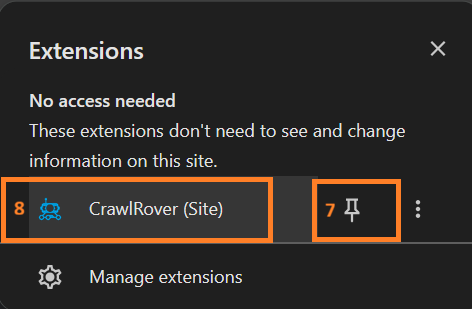
Before you start: download the archive in your account and unpack it into a permanent folder — not into a temporary or downloads folder you might clear later. Then eight steps, numbered on the screenshots themselves.
1
Open the Chrome menu (three dots to the right of the address bar) and hover over «Extensions».
2
In the submenu choose «Manage Extensions». The same screen opens by typing
chrome://extensions in the address bar (in Microsoft Edge — edge://extensions).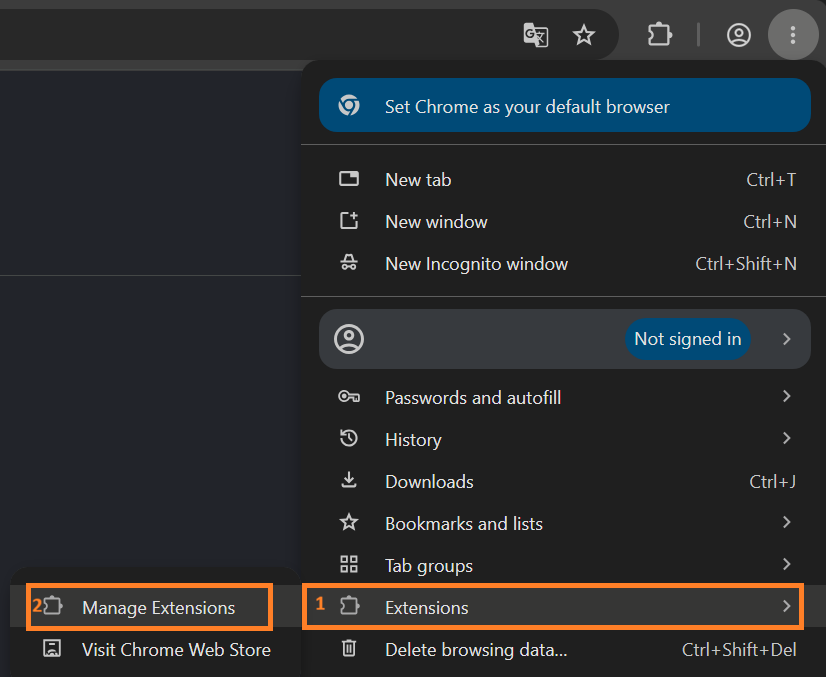
3
On that page turn on «Developer mode» — the switch in the top-right corner. Without it the button from step 4 simply is not there.

4
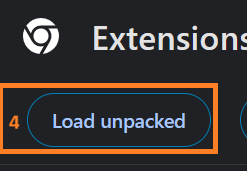
The «Load unpacked» button appears in the top-left corner — click it.
5
In the dialog pick the unpacked folder — the one that holds
manifest.json next to _locales, assets and chunks.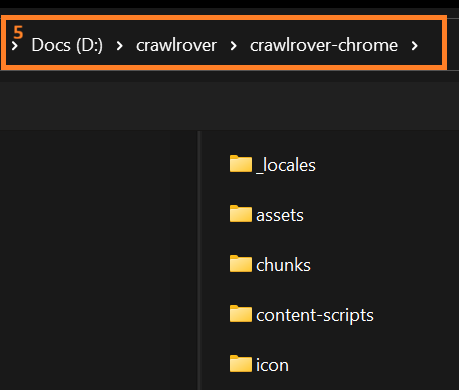
The common mistake. Pick the folder that contains
manifest.json — not the archive itself and not the folder above it. If the
browser says the manifest is missing, you are one level too high: step inside.
6
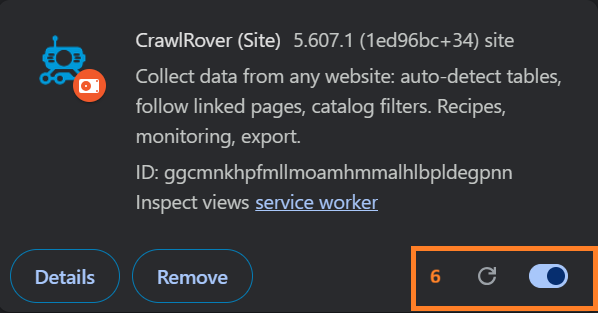
A CrawlRover card appears in the list. Check that the switch on its right is on: a disabled extension is installed but does nothing.
7
Click the puzzle-piece icon to the right of the address bar and pin CrawlRover — the icon then stays on the toolbar instead of hiding.
8
Click CrawlRover — the side panel opens. That is the whole installation.
Updates. A manually installed extension does not update automatically.
When a new version ships, download the archive again and repeat steps 1 and 4 — the
browser replaces the previous version.
Two copies side by side. The full version installs separately from the
store one: the browser treats them as different extensions. Disable the store copy on
the extensions page to avoid confusion.
If something goes wrong
- No «Load unpacked» button — Developer mode is off (step 3).
- The browser reports a corrupt package — the archive downloaded partially; download it again.
- The extension disappeared after a browser restart — the folder was moved or deleted; it must stay in place.